
How to create Discount code ?
A discount code lets your buyers pay less for tickets. You can create two types of codes: one for your whole organizer page, or one for a single event.
Which type should I use?
- Organizer page discount code: works on all your events. You create it once, and you don't need to make a new code for each event.
- Event discount code: works on one event only. You can use it for all tickets or only for some tickets.
What kind of discount can I give?
- Flat discount: takes off a fixed amount. Example: $5 off.
- Percent discount: takes off a percentage. Example: 50% off.
Public or private code?
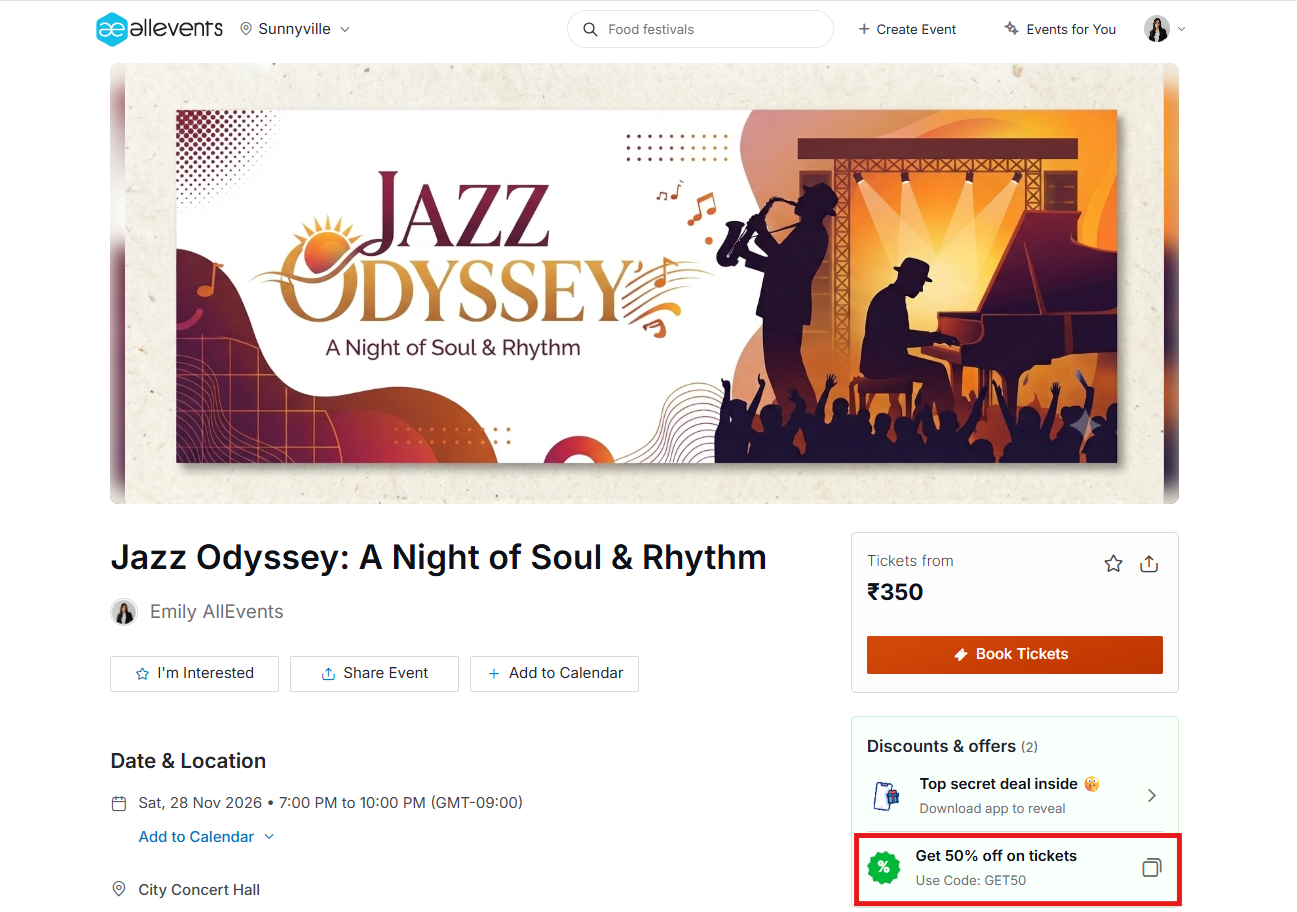
- Public code: shows on your event page. Buyers can copy it, paste it at checkout, and apply it before going to the next page.
- Private code: does not show on your event page. You share it only with the people you choose.
Keep in Mind: The ticket type has to accept payment online through AllEvents to apply the discount code.
How to create an organizer page discount code
- Go to AllEvents.in and click your profile picture (top right corner).
- Click Manage Events.
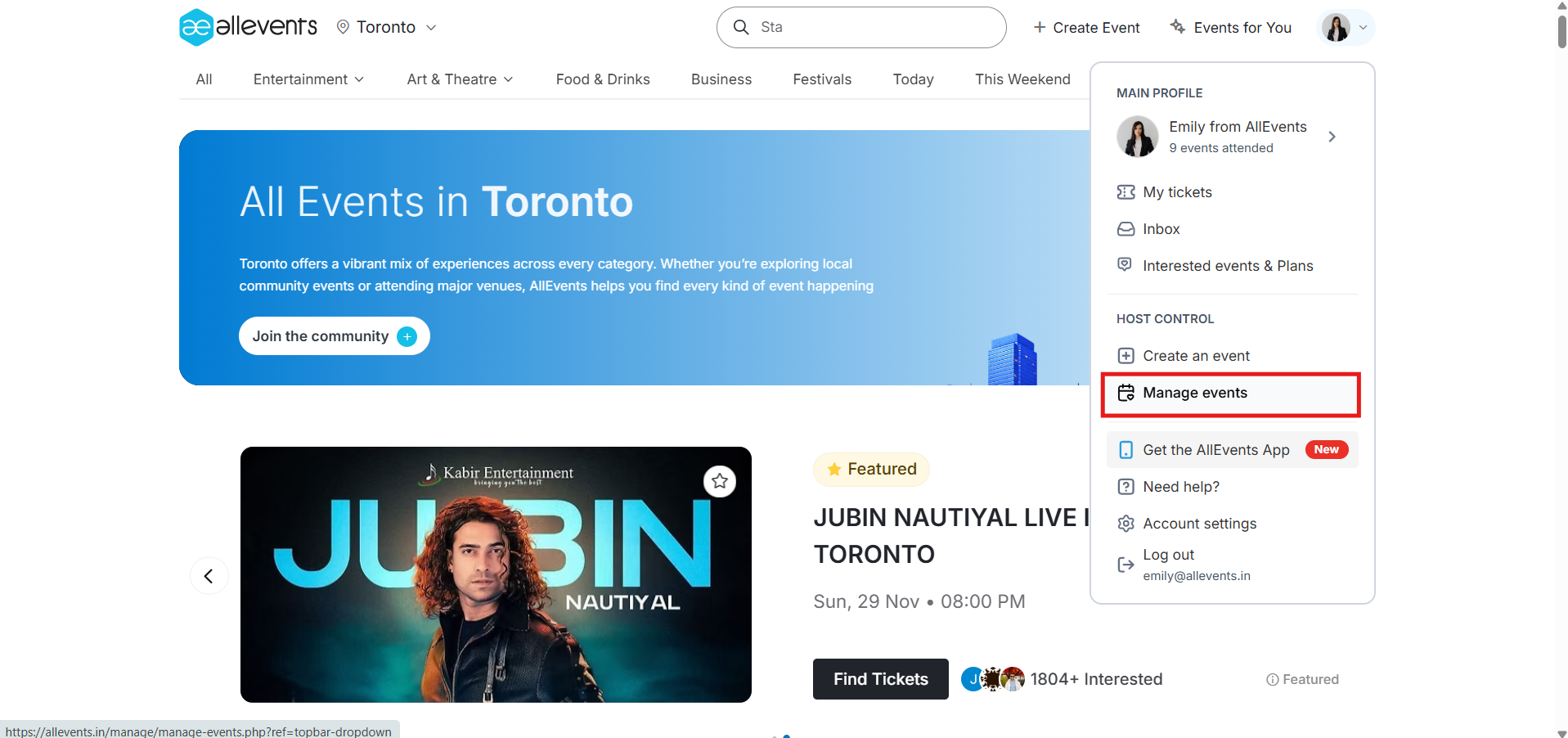
3. Open your organizer page.
- In the left menu, click Discount Code.
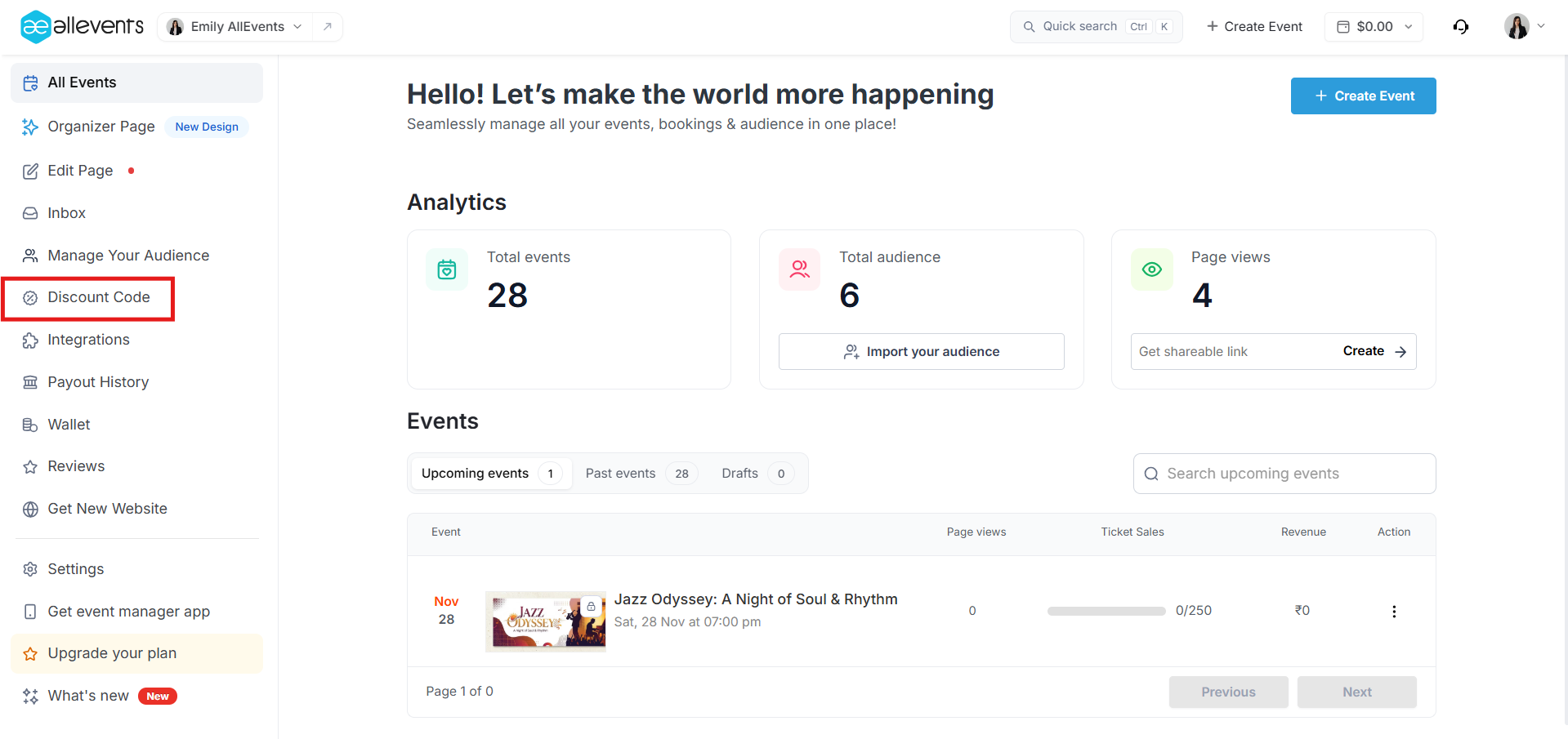
- Choose Flat or Percent discount.
- Enter the discount code, the discount amount and the expiry date.
- Set your usage limit: unlimited, one time only, or a maximum number of uses.
- Click Continue. Check the details, then click Confirm & Save.
Tip: You can deactivate a discount code after creating it. Once you do, its status will be changed to Inactive.
How to create an event discount code
- Go to AllEvents.in and click your profile picture (top right corner).
- Click Manage Events.
- Open your organizer page and select your event.
- In the left menu, click Marketing, then click Discount Code.
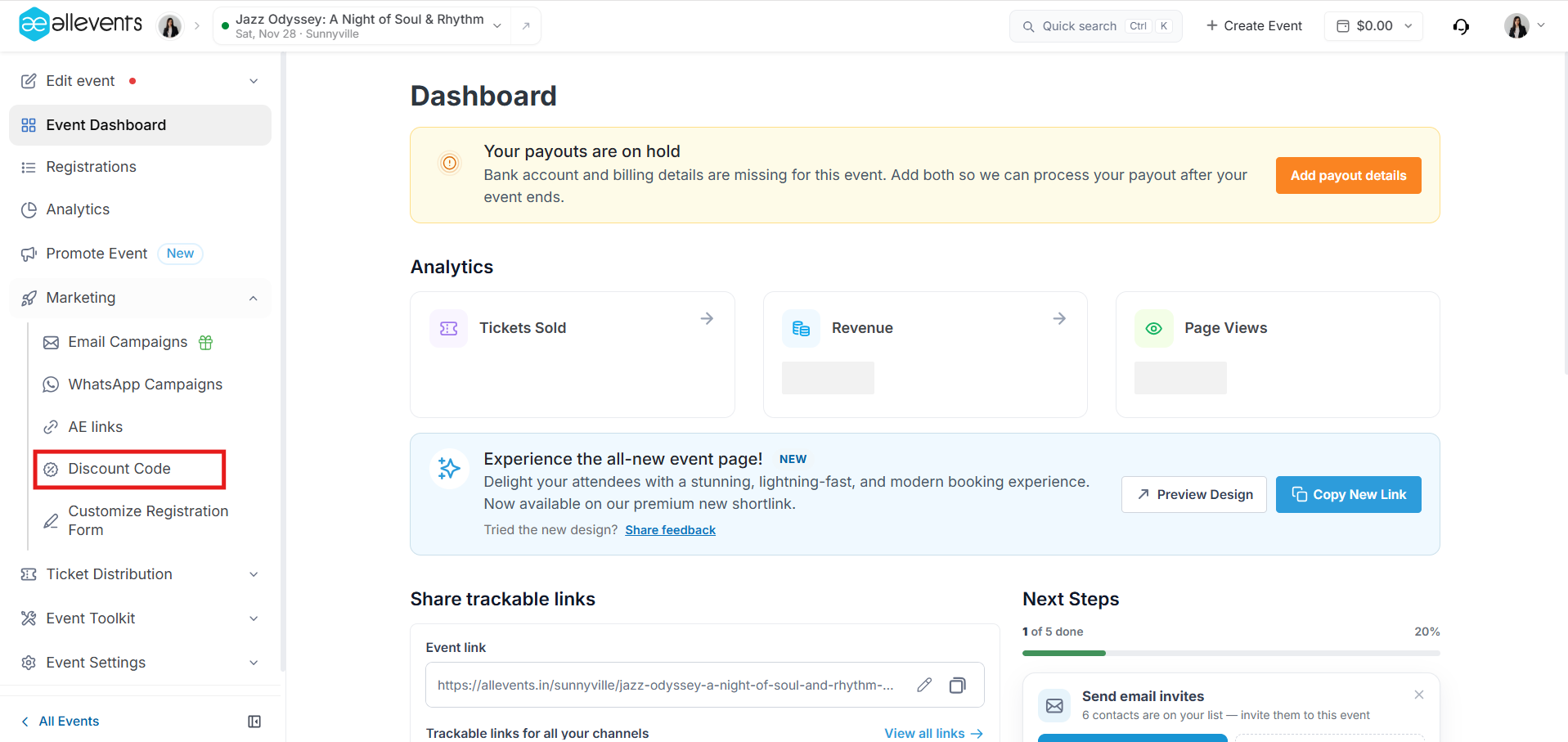
- Choose All tickets or Selected tickets.
- Choose Flat or Percent discount.
- Enter the discount code, the discount amount and the expiry date.
- Set your usage limit: unlimited, one time only, or a maximum number of uses.
- Choose Public or Private.
- Click Continue. Check the details, then click Confirm & Save.
This is how your public discount code will look on your event page:
Explore: If you are wondering how ticket buyers will be able to use the discount codes, click here.
Note: If you have entered an email address or phone number as the coupon code for the direct application, users will see the discount in their order summary during checkout, and they will be asked to pay the reduced amount.
Should you require additional assistance or have any questions, please feel free to reach out to support@allevents.in.